Data
The Data view shows every value in the file. Use it to change things no task covers.
A FIT file is a list of messages. Each kind of message gets its own tab, with a count. Record has a row for each second or so of the activity. Each row has the time, position, heart rate, distance and other values. Lap has a row for each lap.
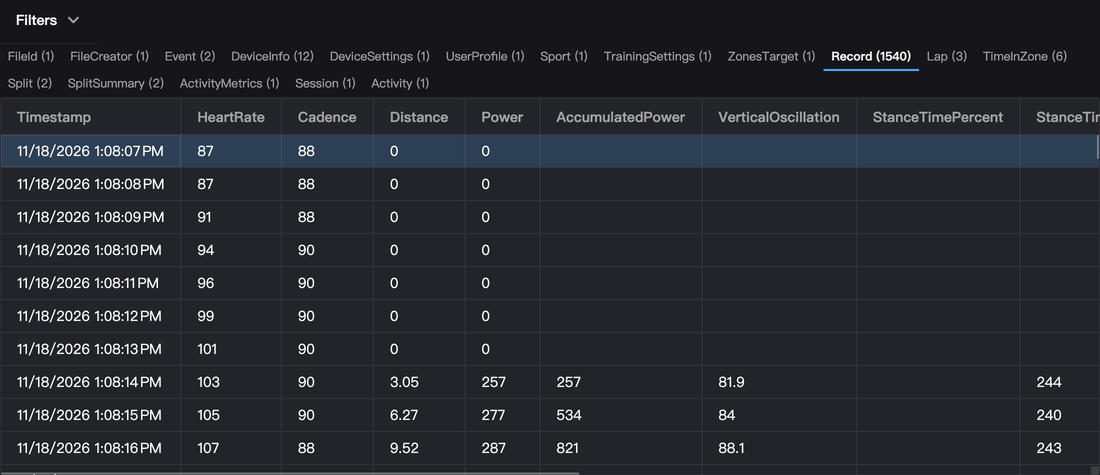
Edit a value
Click a cell and type a new value. Some cells, such as a lap’s Event, are drop-down menus.
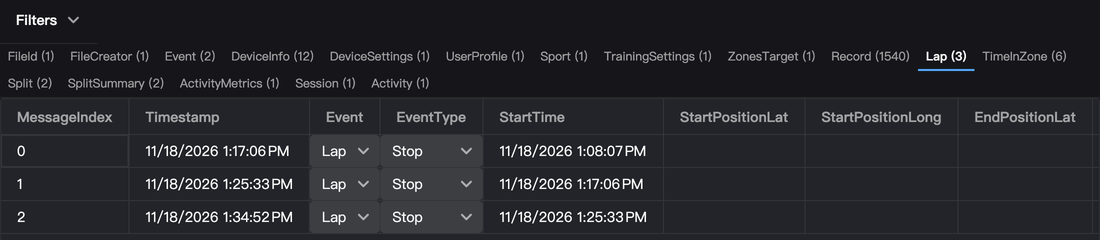
When you are done, click Save Changes. FitEdit saves a new version, and Undo goes back.
Before you run a task or export, you must save your edits. If you close the tab first, FitEdit asks whether to save.
Rows
Right-click a row to see more actions.
- Duplicate copies the row.
- Delete removes the row.
- Delete and subtract distance removes a record and takes its distance out of the records after it. Use it to remove a GPS jump without leaving a gap in the distance.
- Split lap starts a new lap at this record.
- On the Lap tab, select two or more laps next to each other and choose Merge laps to make them one lap.
Sort
Click a column header to sort by that column. Click it again to reverse the order. For example, sort Record by HeartRate to find the highest reading.
Filters
Use the Filters menu to hide data you do not need.
- Hide unused columns hides columns with no values.
- Hide unnamed tabs and Hide unnamed columns hide messages and fields that the FIT standard does not name. Devices often add these.
- Pretty data shows a date instead of a raw timestamp such as
945518320, and “Running” instead of1.